Business Accounts
Shared Library & Review Workflow
Every QR code in the business library moves through three states: Draft, Needs Review, and Approved.
Adding a code
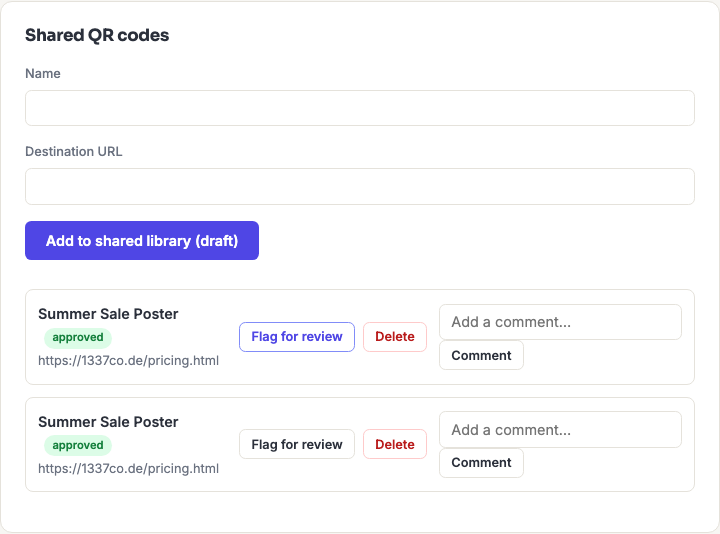
An Admin or Writer fills in a name and destination URL under "Shared QR codes" and clicks Add to shared library (draft). It starts life as a Draft, visible to the whole team but not yet reviewed.
The review cycle
- The Writer who created it (or an Admin) clicks Submit for review — status becomes Needs Review.
- An Admin or Reviewer either Approves it (status becomes Approved) or Rejects it with a required comment explaining what needs to change (status goes back to Draft).
- Editing an already-Approved code's content automatically resets its status back to Draft — the label always reflects whether the current content actually matches what was reviewed.
Comments
Every shared QR code has its own comment thread, visible to the whole team — used for review feedback, rejection reasons, or general discussion about a code. Anyone can comment, regardless of role.
Notifications
A notification appears in the "Notifications" panel at the top of the Business QR Library page when: a draft is submitted for review (notifies Admins/Reviewers), a code is approved or rejected (notifies whoever created it), or someone flags a code for review (notifies Admins/Reviewers). Click Mark read to dismiss one.
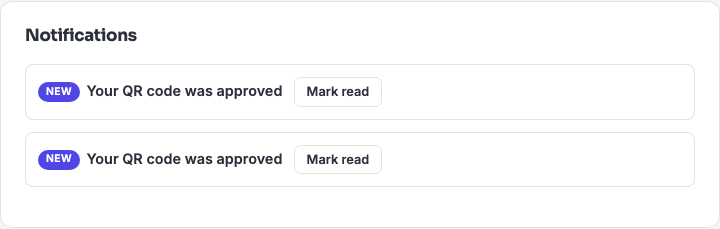
Notifications are shown in the app only today — there's no email alert yet for these events.
Sharing dynamic QR codes with your team
A dynamic QR code can also be team-owned rather than personal: an Admin or Writer creates it as usual from the generator with the destination set to the business's dynamic QR code, then it appears in the shared library the same as a static one, going through the same draft/review/approved cycle.